
Email filters allow you to automatically organize incoming messages, for example:
- Move emails to specific folders;
- Automatically delete spam;
- Forward messages.
1. Log in to your cPanel account
(e.g.: yourdomain.com/cpanel or cpanel.yourdomain.com)
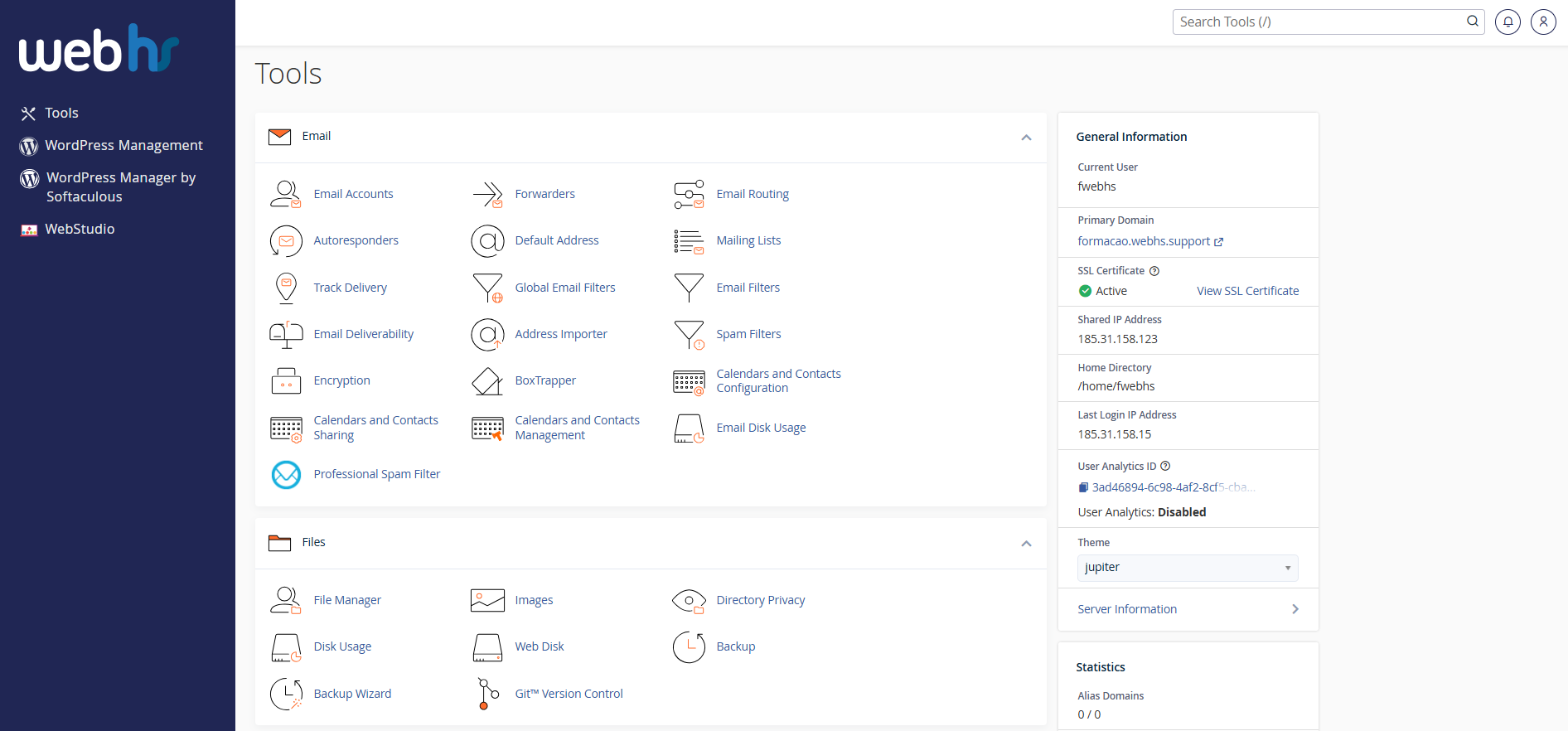
cPanel overview
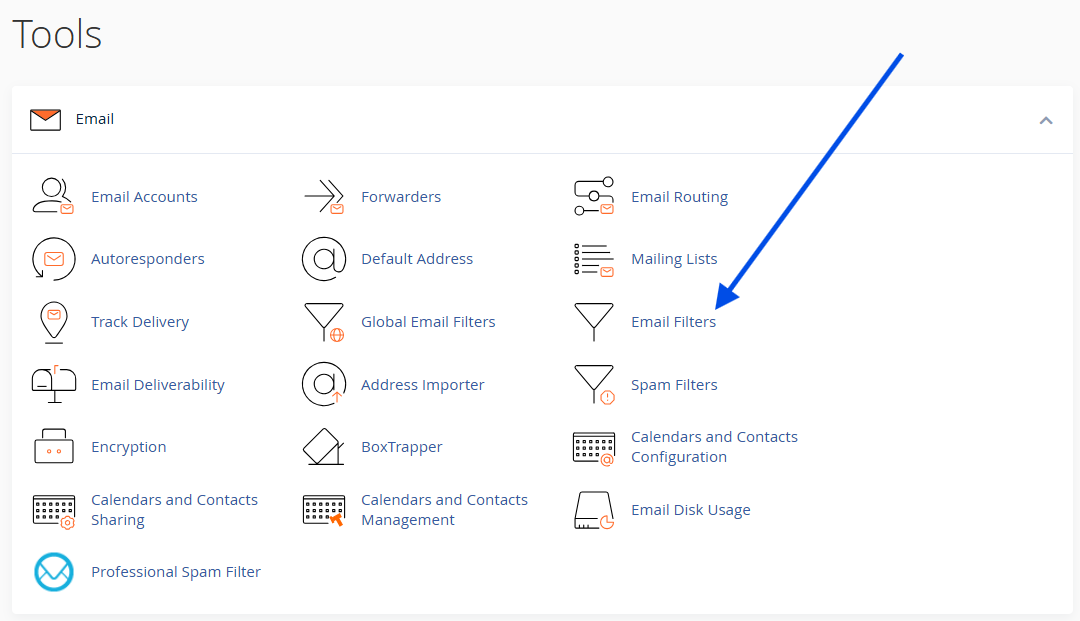
2. Click Email Filters
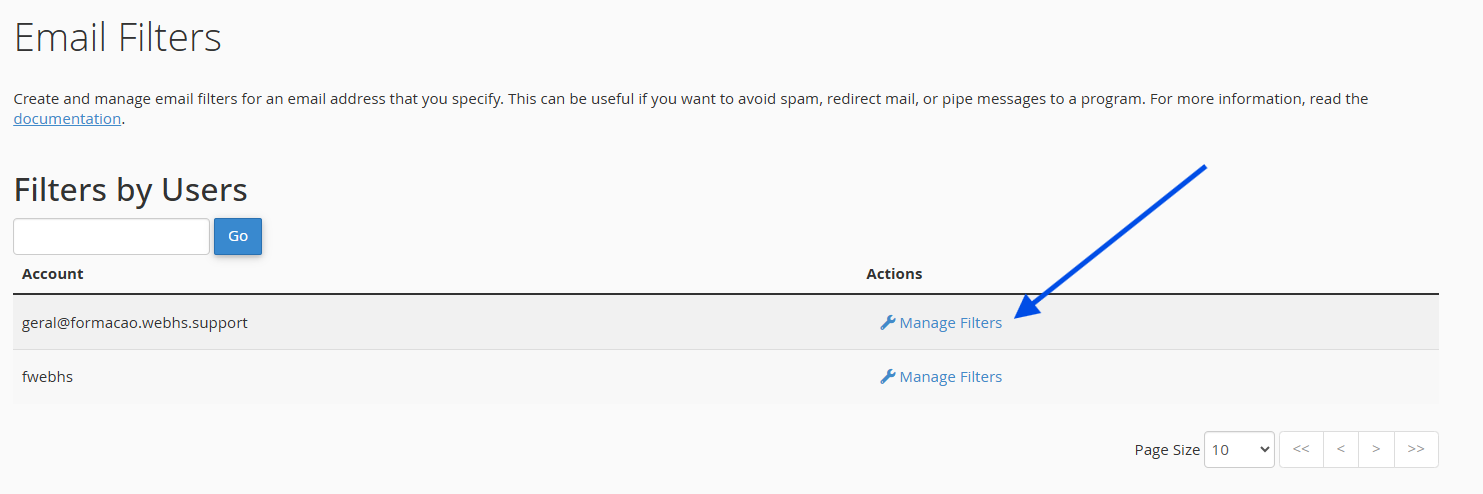
3. On the next page, a list of all email accounts will be displayed. Locate the account where you wish to create the filter and click Manage Filters.
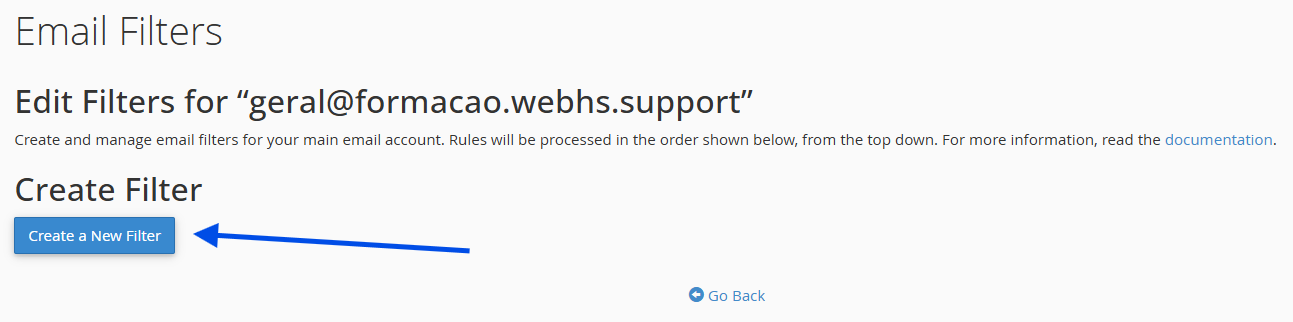
4. Click Create a New Filter
5. Define the filter rules:
- Select the field (From, Subject, To, Body, etc.)
- Choose the condition (contains, is equal to, begins with, etc.)
- Enter the desired value
- You may define more than one rule
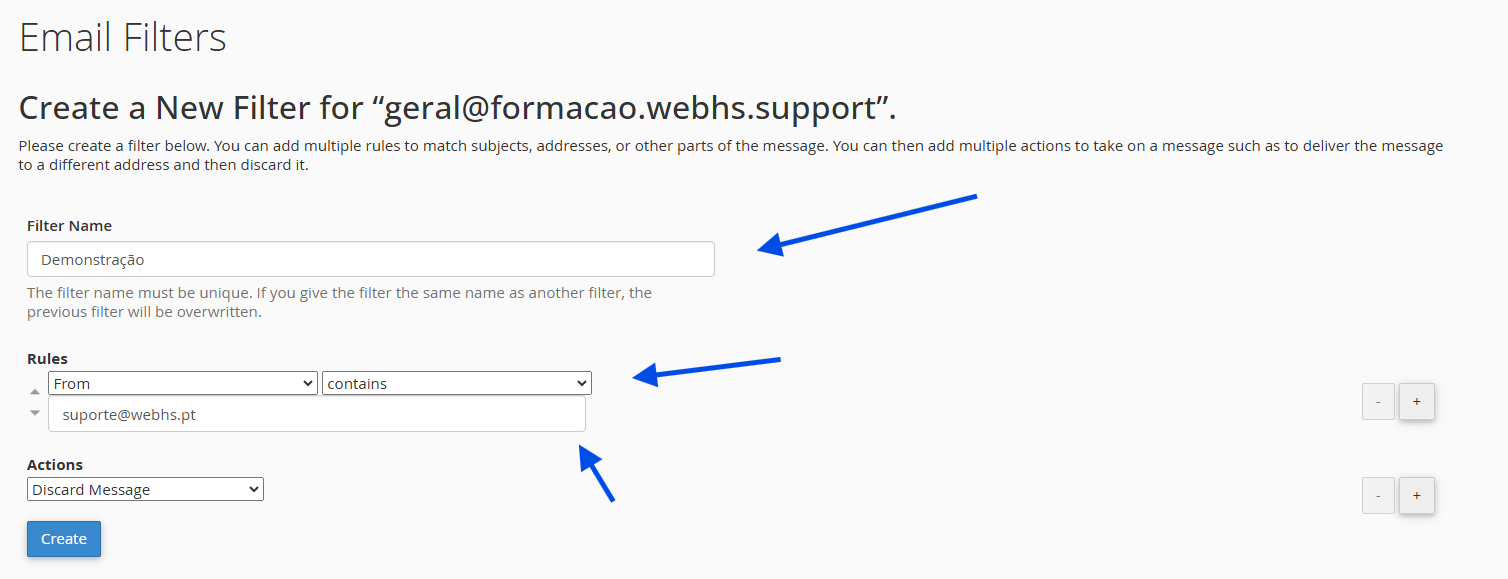
6. Choose the action to be performed:
- Move to a folder
- Forward to another email address
- Delete the message
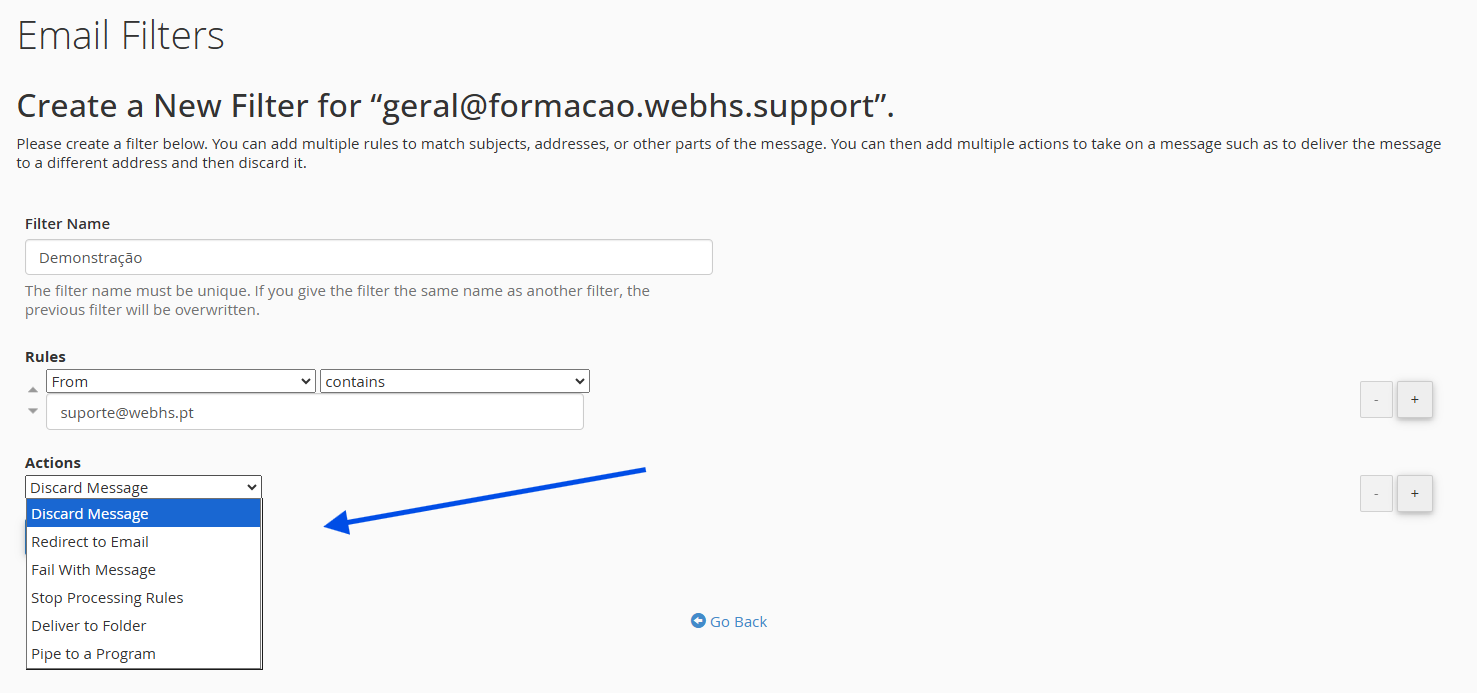
7. Click Create
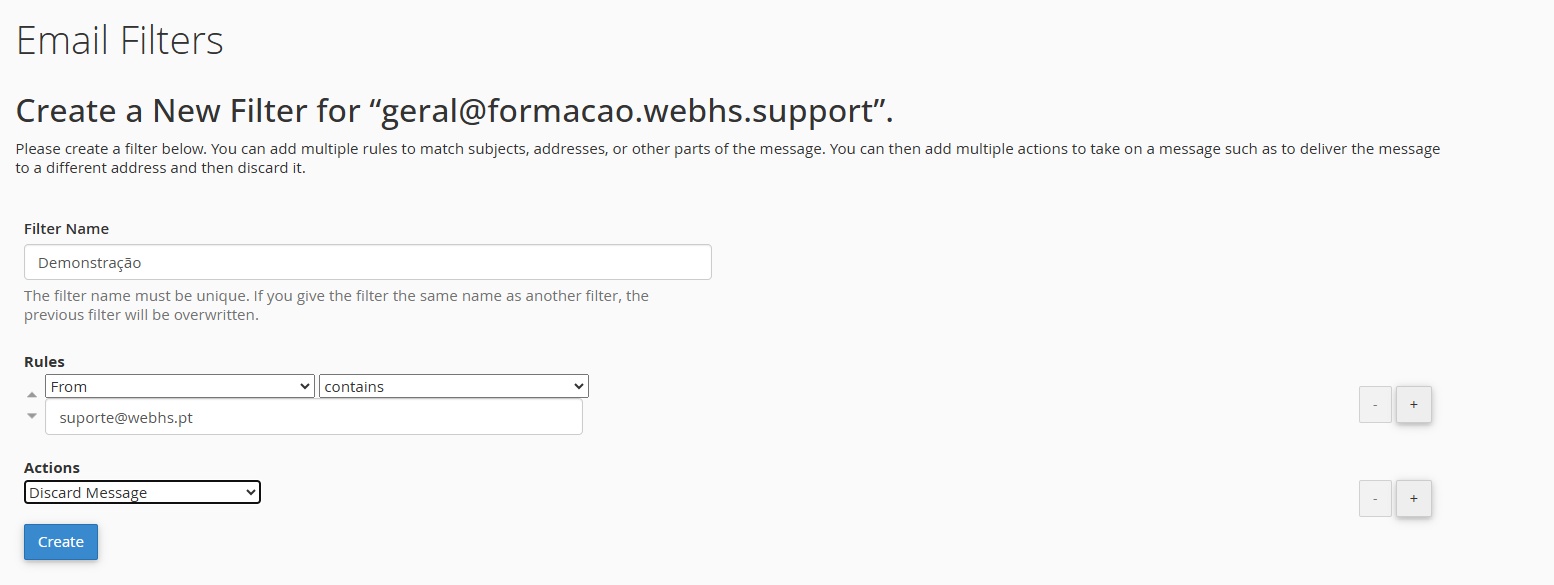
The filter is activated immediately.


Filter Example
Condition: Subject contains “Invoice”
Action: Move to the “Invoices” folder
 Important Notes
- You can create multiple rules within the same filter;
- Use the Delete option with caution, as deleted emails may not be recoverable.
 Helpful Tip
To avoid losing important emails:
- Test the filter using real emails;
- Start by moving messages to folders instead of deleting them.