
Webmail allows you to export your contact list to a file and import contacts from other services (such as Gmail or Outlook), making it easy to migrate or back up your contacts.

How to Export Contacts
1. Access Webmail using your email address and corresponding password:
(e.g., https://yourdomain.com/webmail or https://webmail.yourdomain.com)
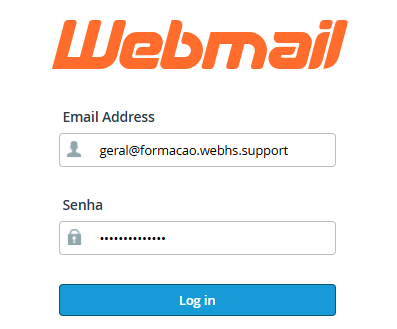
2. Log in to your email account.
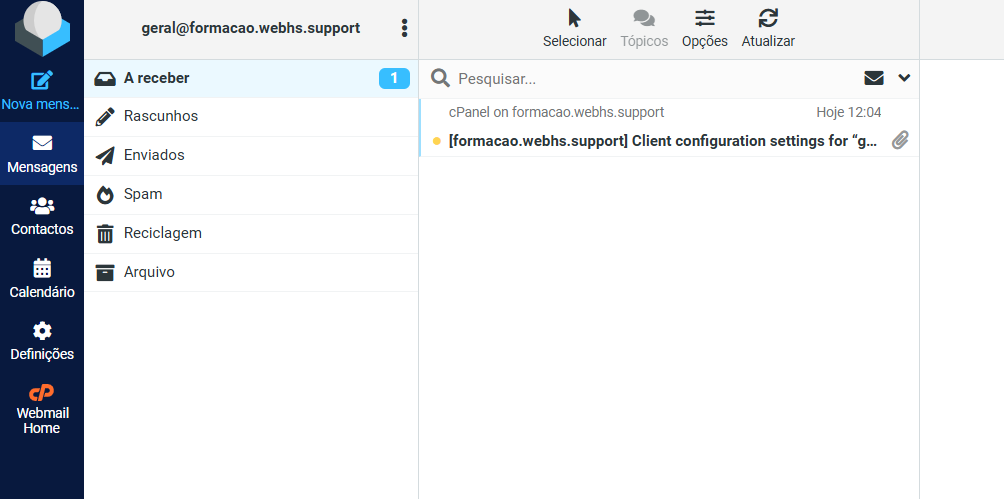
3. Click on Contacts
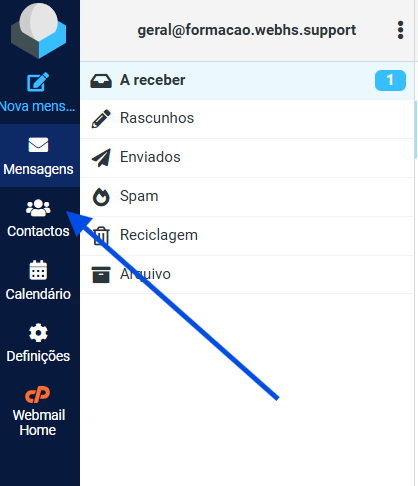
4. Select the contact list you want to export.
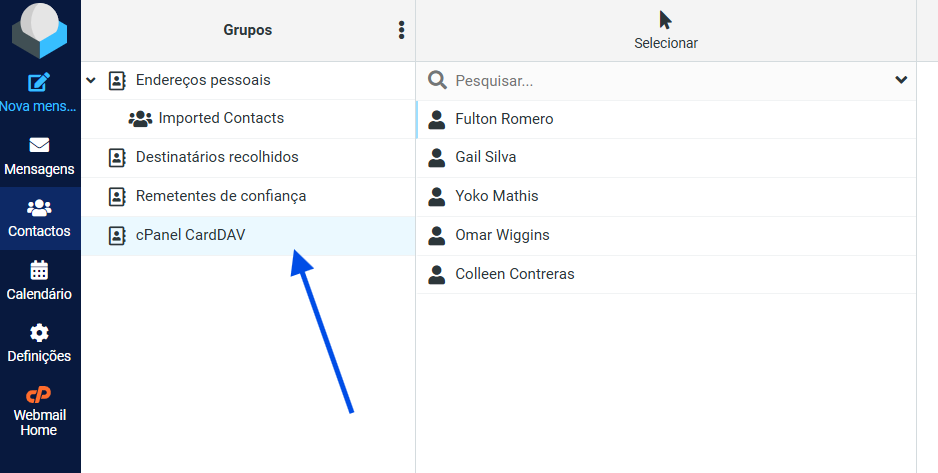
5. Click Export
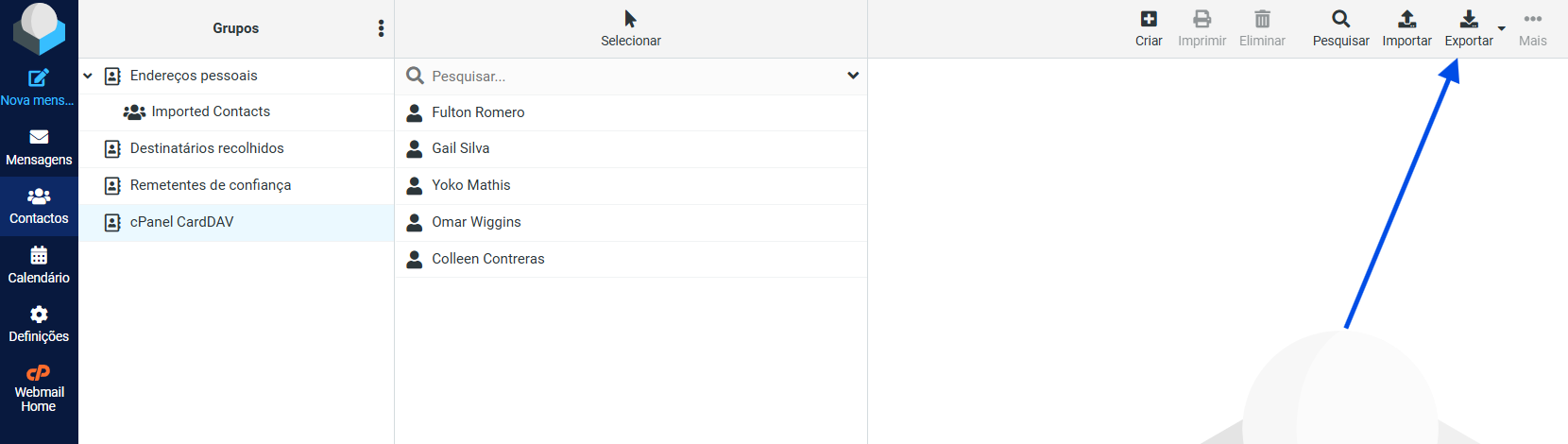
6. Save the file to your computer.
The exported file is typically generated in .vcf (vCard) or .csv format.
 How to Import Contacts
1. Access Webmail using your email address and corresponding password:
(e.g., https://yourdomain.com/webmail or https://webmail.yourdomain.com)
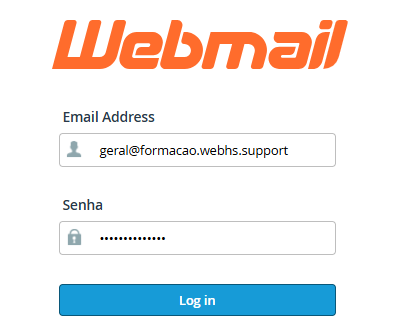
2. Log in to your email account.
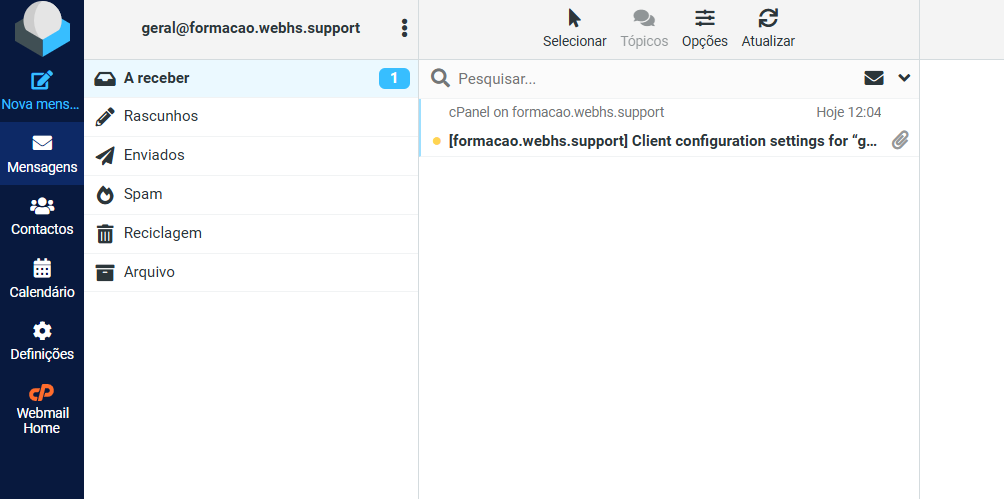
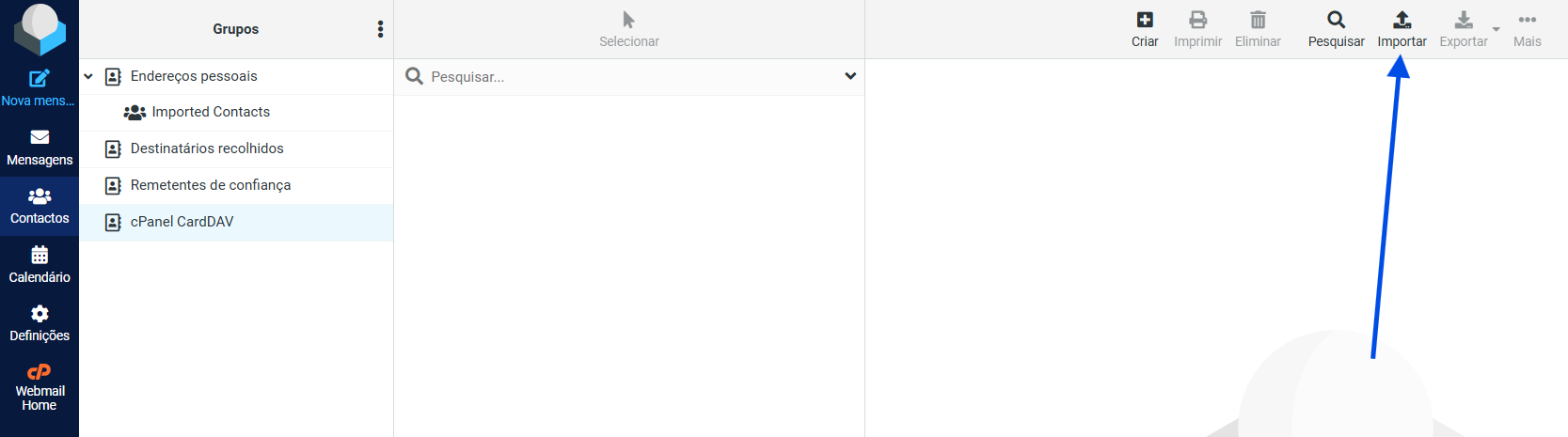
3. Click on Contacts
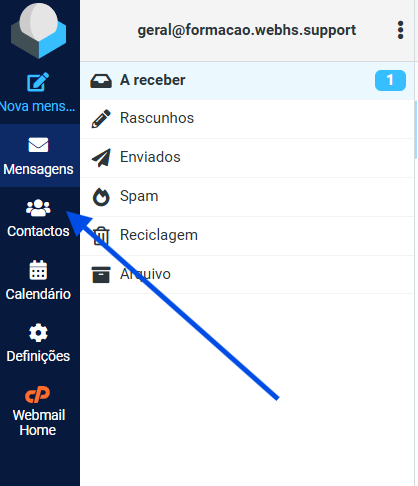
4. Click on Import
5. Select the contact file from your computer (vCard or CSV format)
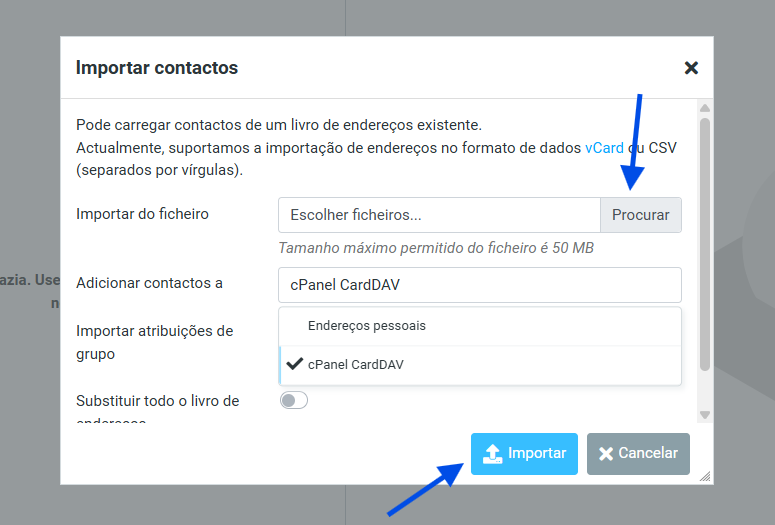
6. Click Import to proceed
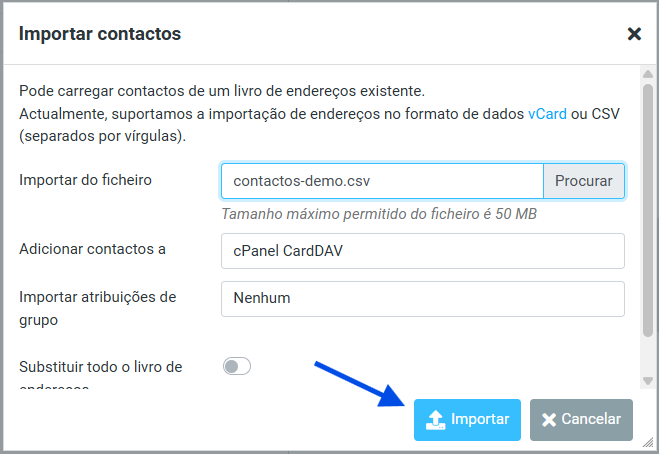
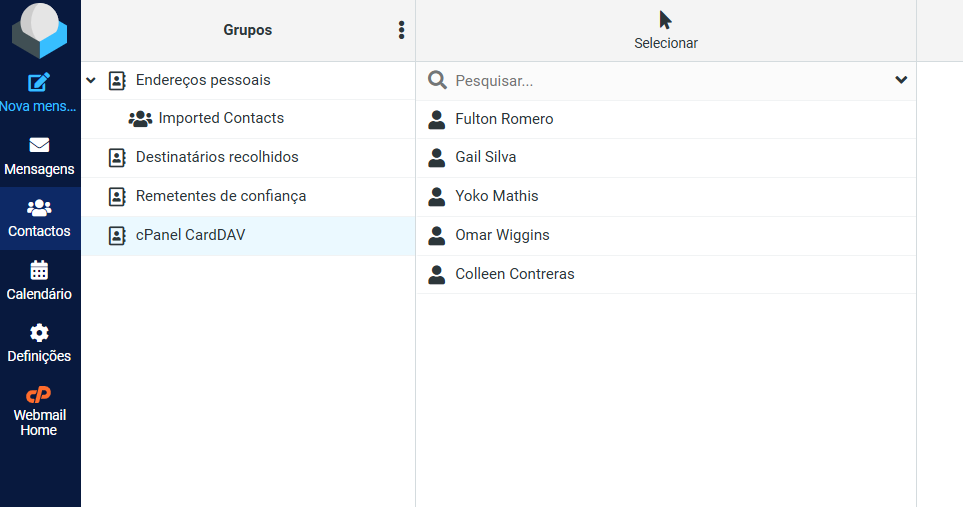
7. The import process may take a few minutes, depending on the number of contacts.

Important Notes
- Check for duplicate contacts after importing.
- The import process adds new contacts and does not overwrite existing ones.
- Improperly formatted files may cause import errors.

You may find this useful:
- When switching email providers
- When creating a backup of your contacts
- When transferring contacts from another email account