
1. Log in to your cPanel account
(e.g.: yourdomain.com/cpanel or cpanel.yourdomain.com)
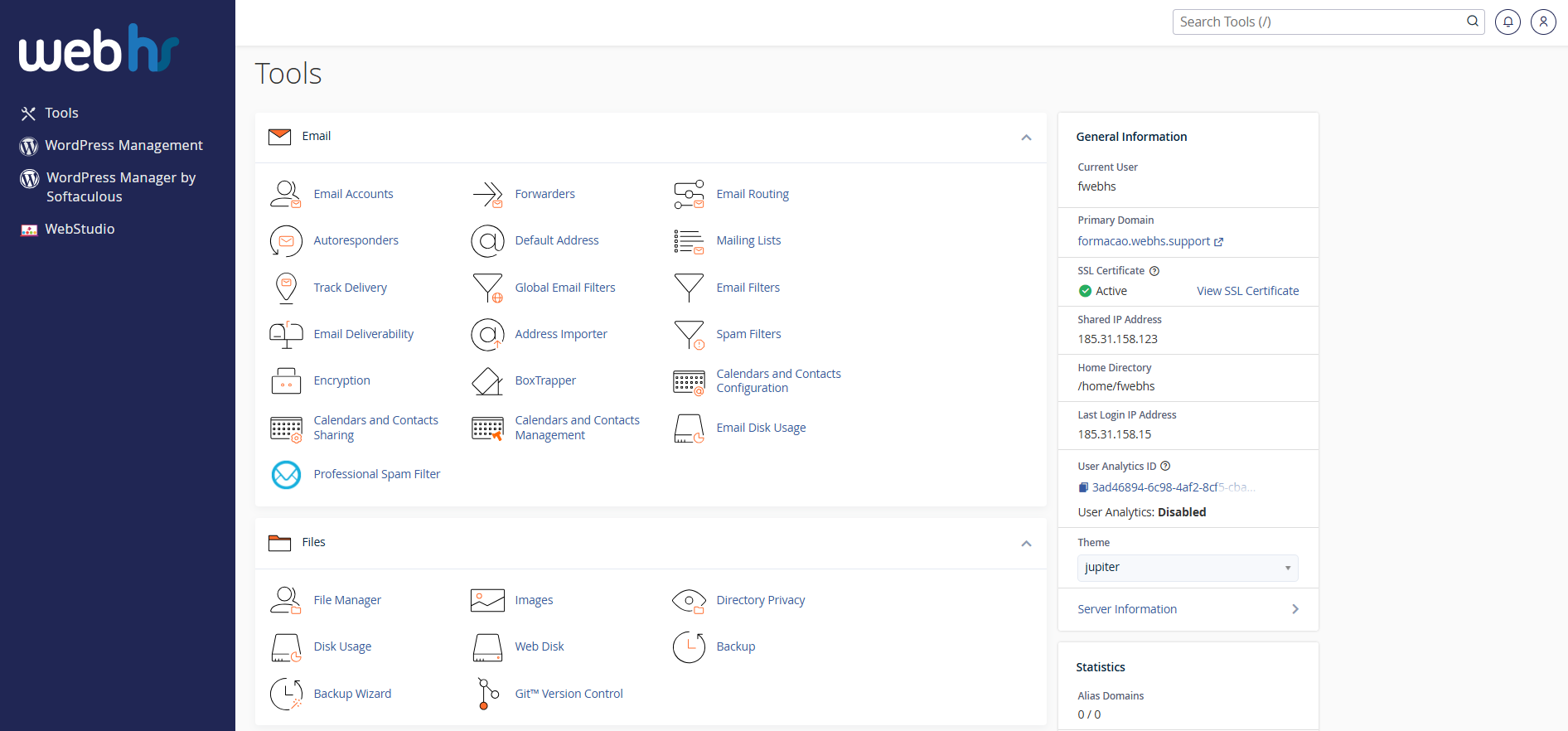
cPanel overview
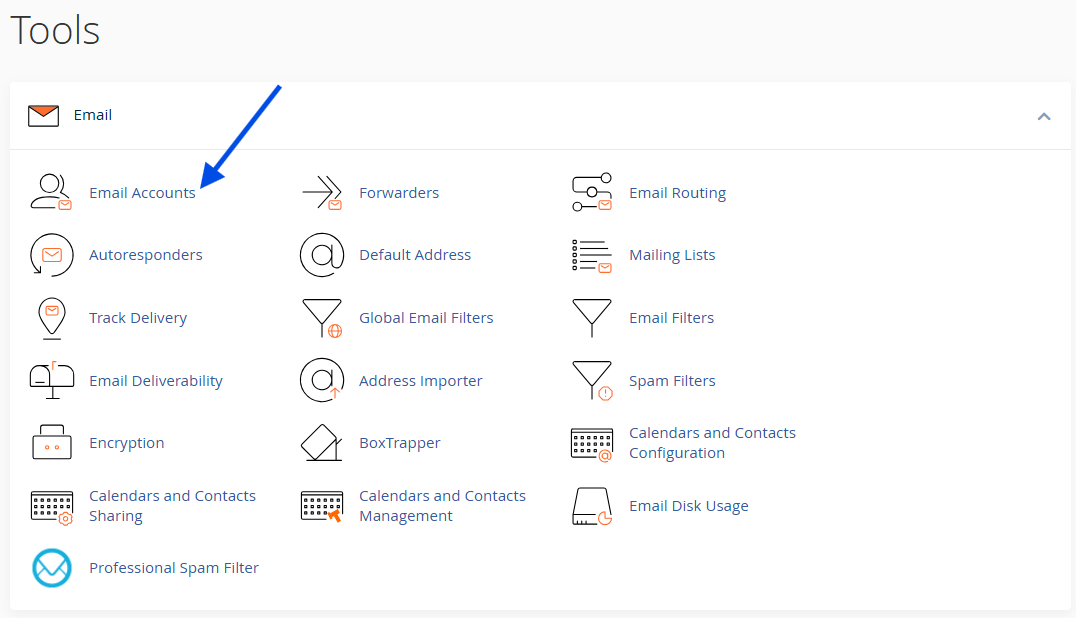
2. Click on Email Accounts
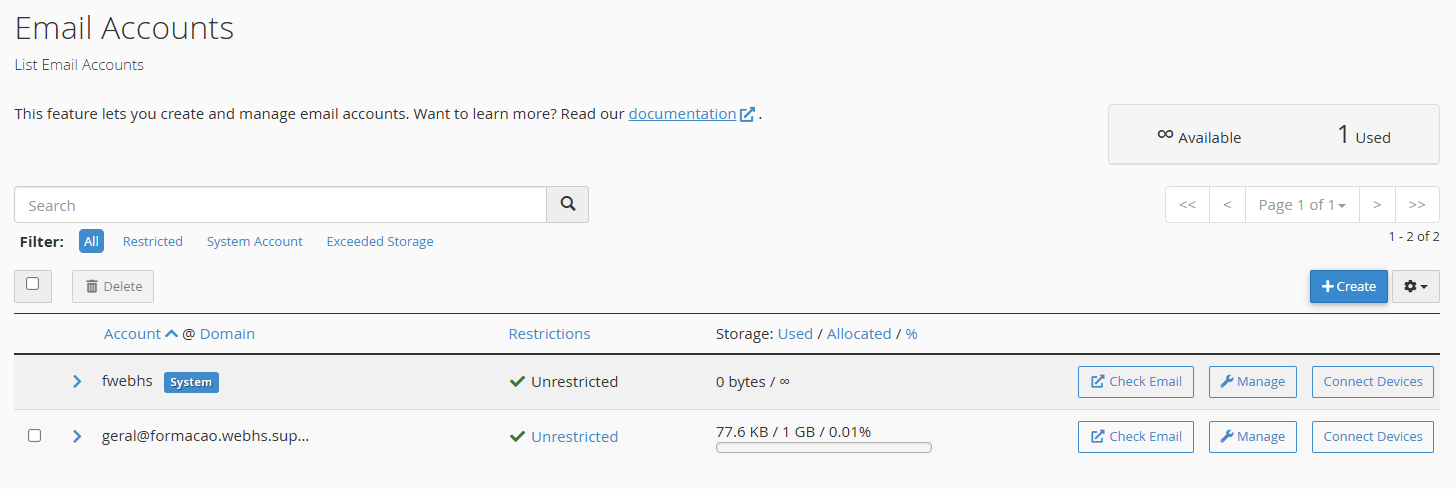
3. Locate the email account you wish to manage.
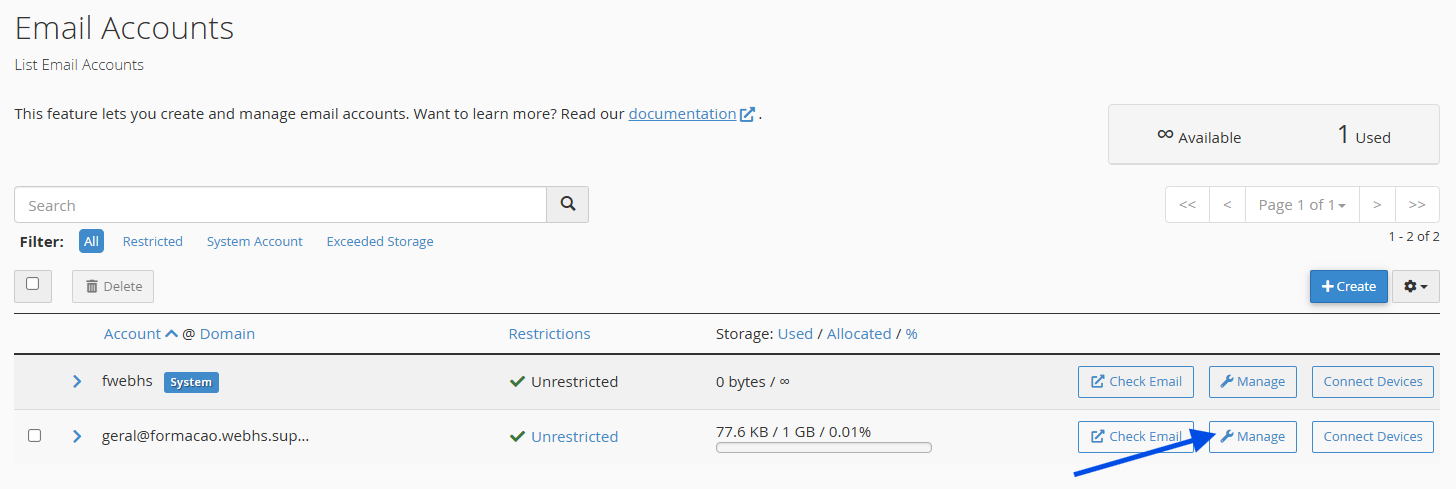
4. Click on Manage
5. Enter the new password.
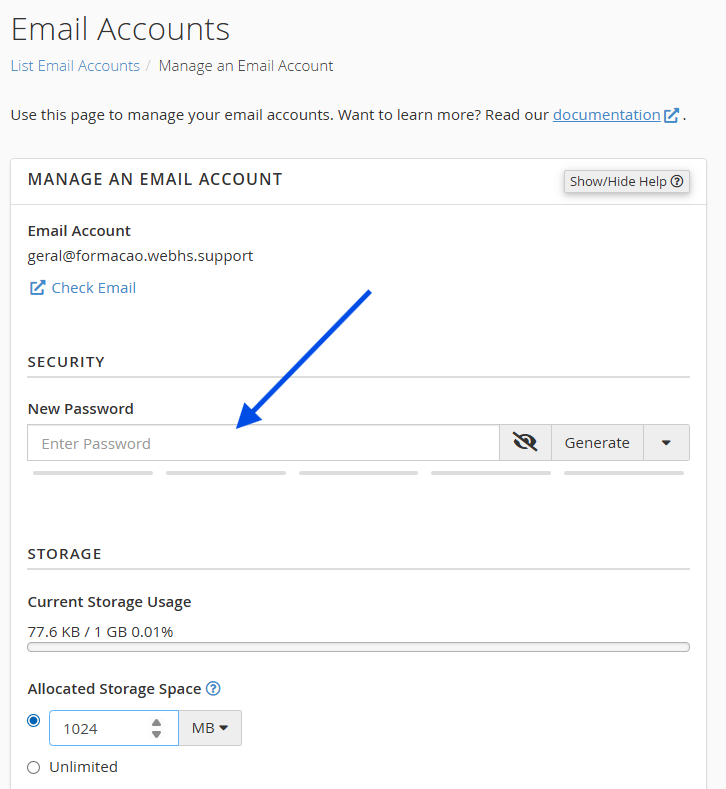
You may either enter a password manually or generate a secure password using the Password Generator.
6. Click on Update Email Settings to apply the changes.
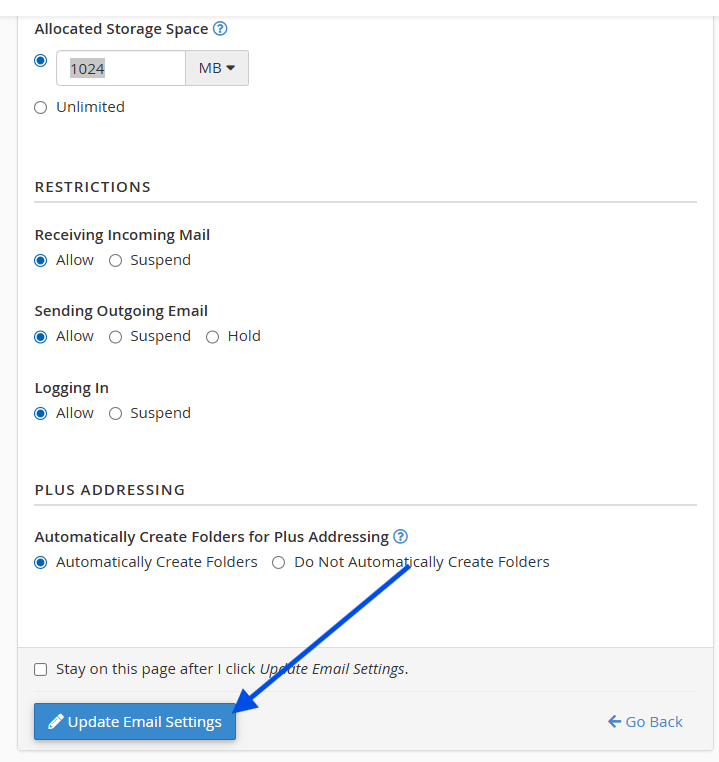
The new password is applied immediately.
Important Notes:
- After changing the password, you must update it on all devices (Outlook, smartphone, etc.);
- If the password is not updated in your email clients, you will no longer be able to send or receive emails;
- Always use a strong password to ensure maximum security.
 Helpful Tip
If you experience issues after changing your password:
- Verify your email server settings (IMAP/POP3/SMTP);
- Make sure you are using the new password;
- Test access via Webmail (e.g., https://yourdomain.com/webmail or https://webmail.yourdomain.com).