
Hosting overload occurs when your website uses more resources than allowed by your hosting plan, such as CPU, memory, or I/O. This can lead to slow performance or temporary unavailability (e.g., Error 503).
1. Log in to your cPanel account
(e.g.: yourdomain.com/cpanel or cpanel.yourdomain.com)
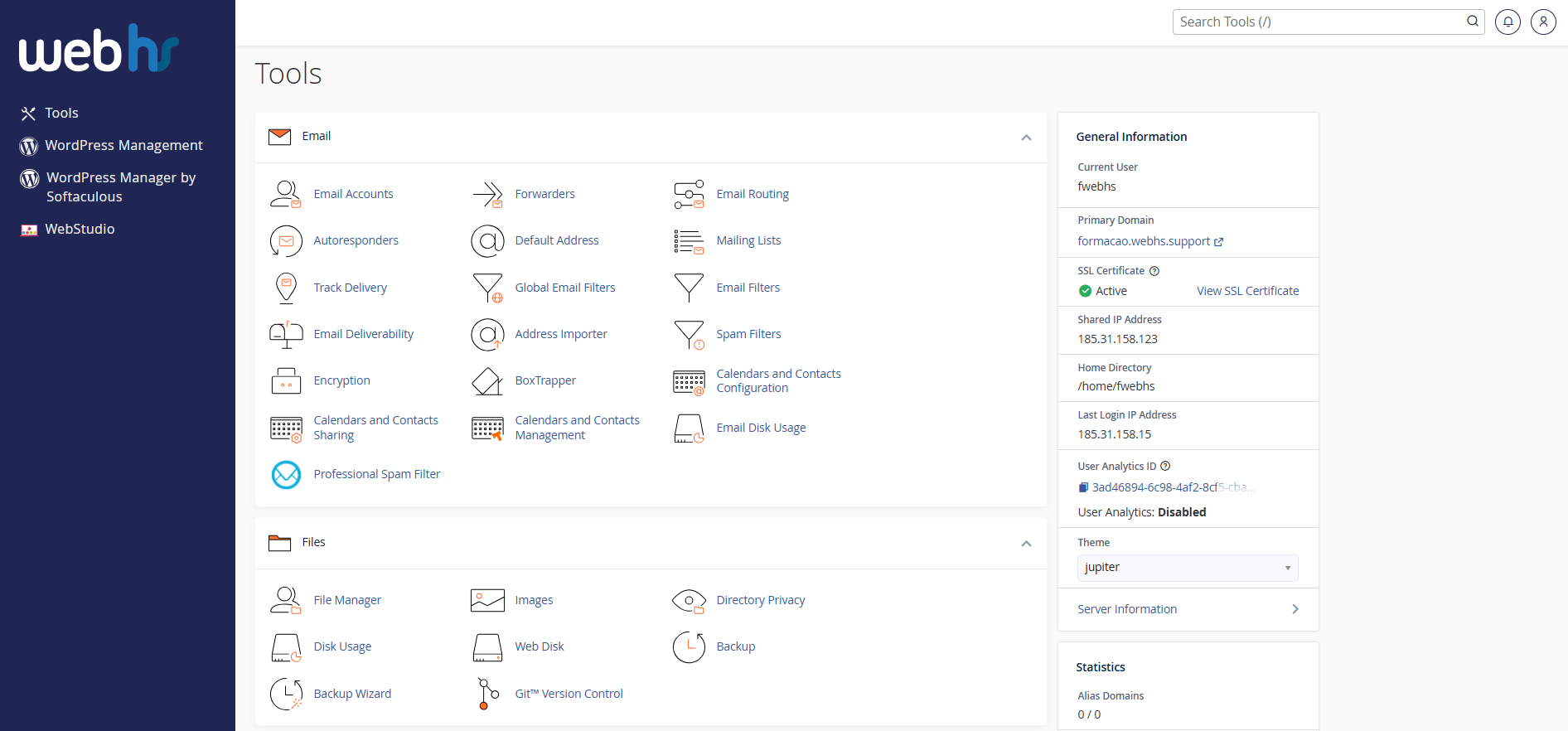
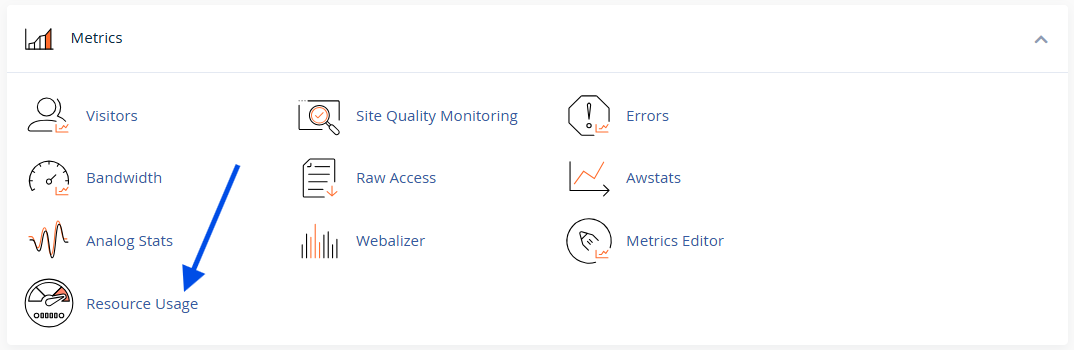
2. Click on Resource Usage
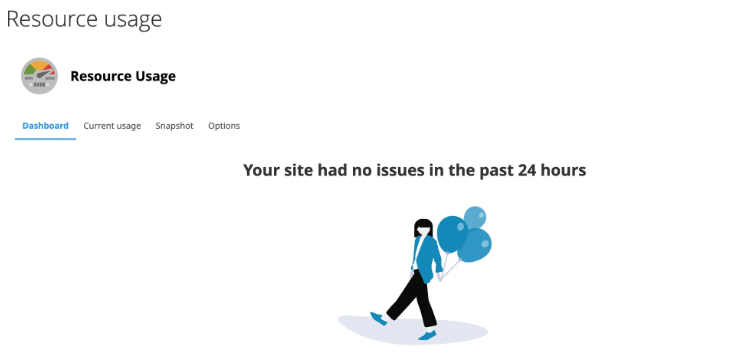
3. Once inside, you’ll see a summary of your hosting resource status:
 “Your site has had no issues in the past 24 hours”
Your website is optimized and not overloaded
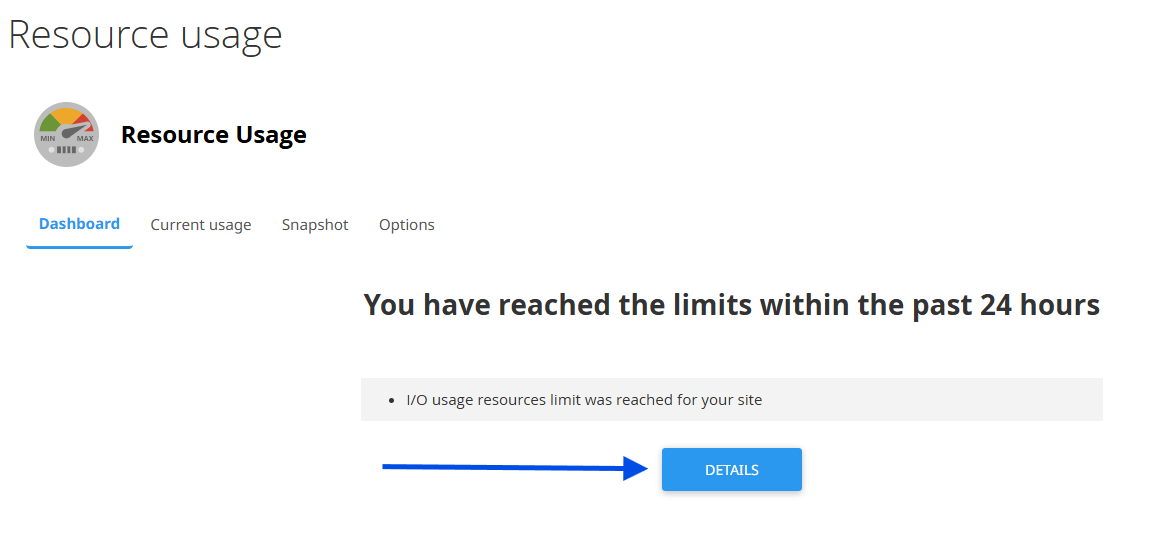
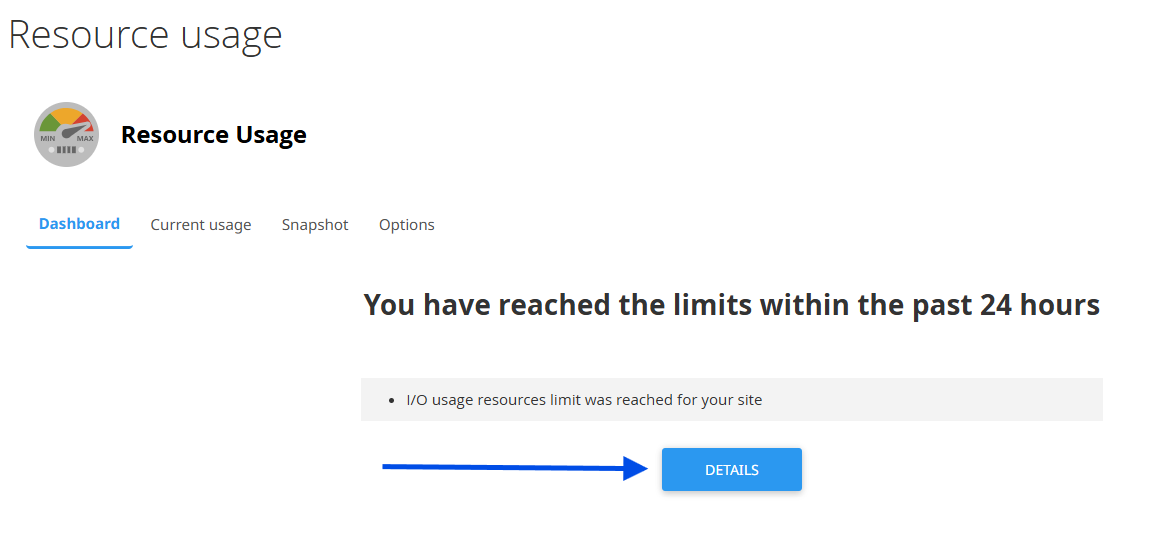
 “You have reached the limits within the past 24 hours”
Indicates your website was overloaded
You can check which resources exceeded the limits
 “Your site may be hitting resource limits soon”
Your plan resources are close to the limit
cPanel indicates which resource is causing the issue
 Viewing Resource Usage Details
To identify the cause of high resource usage:
1. Click on Details
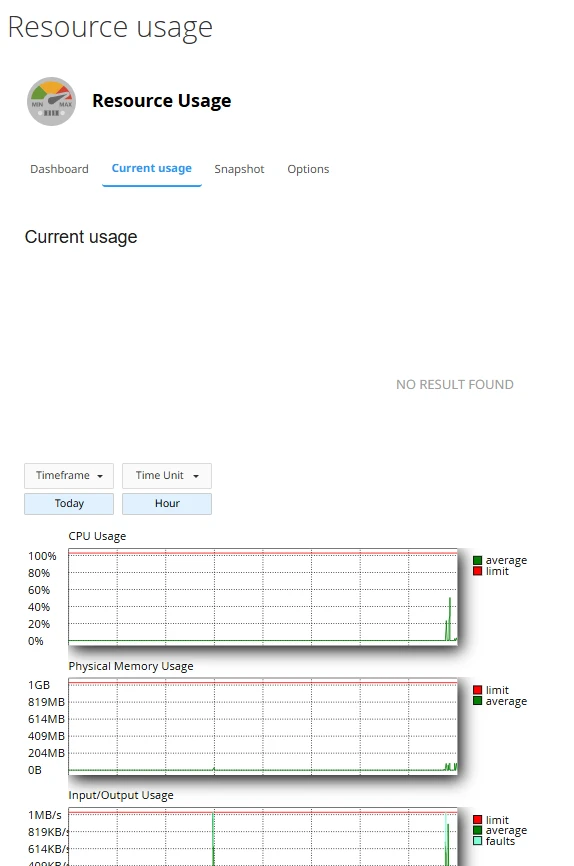
2. You will see detailed information about:
- CPU
- Memory
- Inodes
- Input/Output (I/O)
By default, graphs display hourly usage for the current day.
Changing the Analysis Period
1. To analyze a different timeframe:
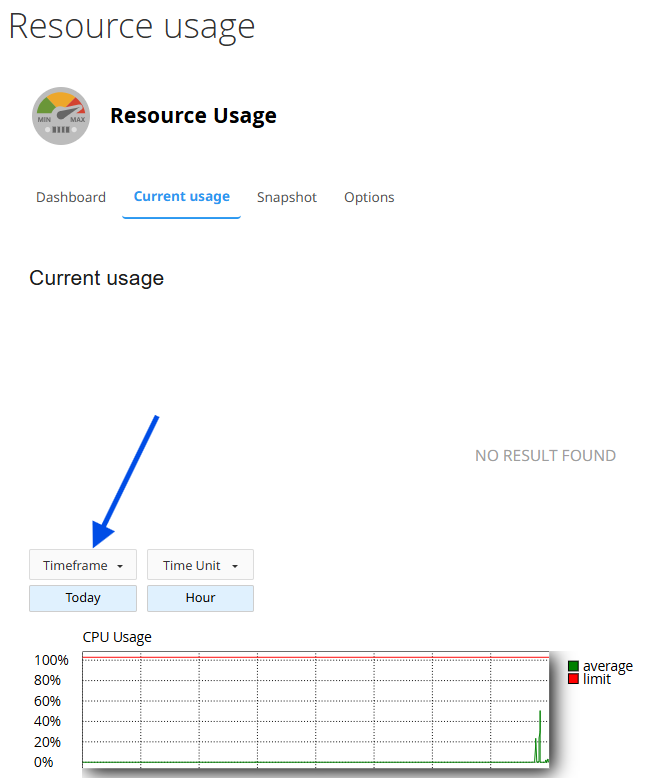
2. Click on Timeframe
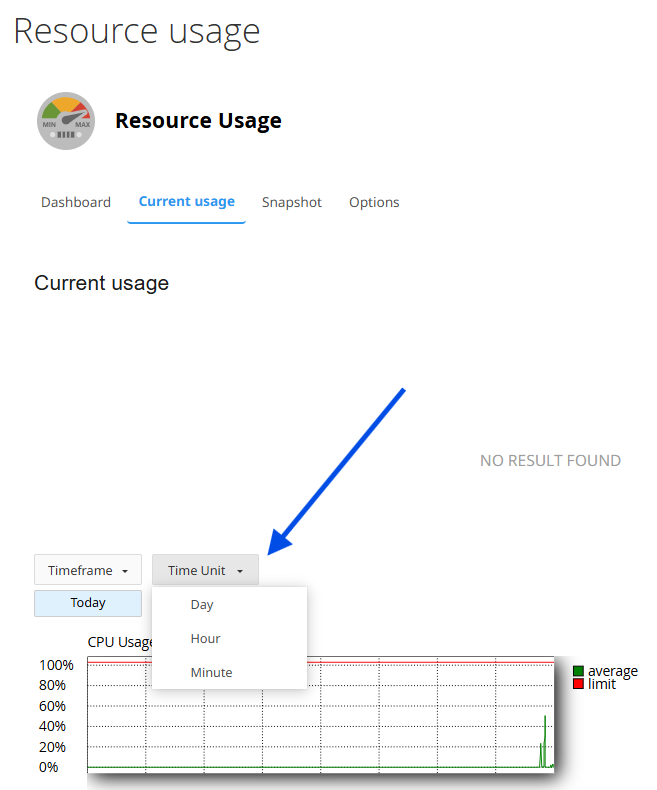
Under Time Unit, select:
- Hours
- Minutes
- Another available interval
 Switching to minutes helps identify sudden usage spikes.
Checking Snapshots (Processes)
To determine exactly what caused the overload:
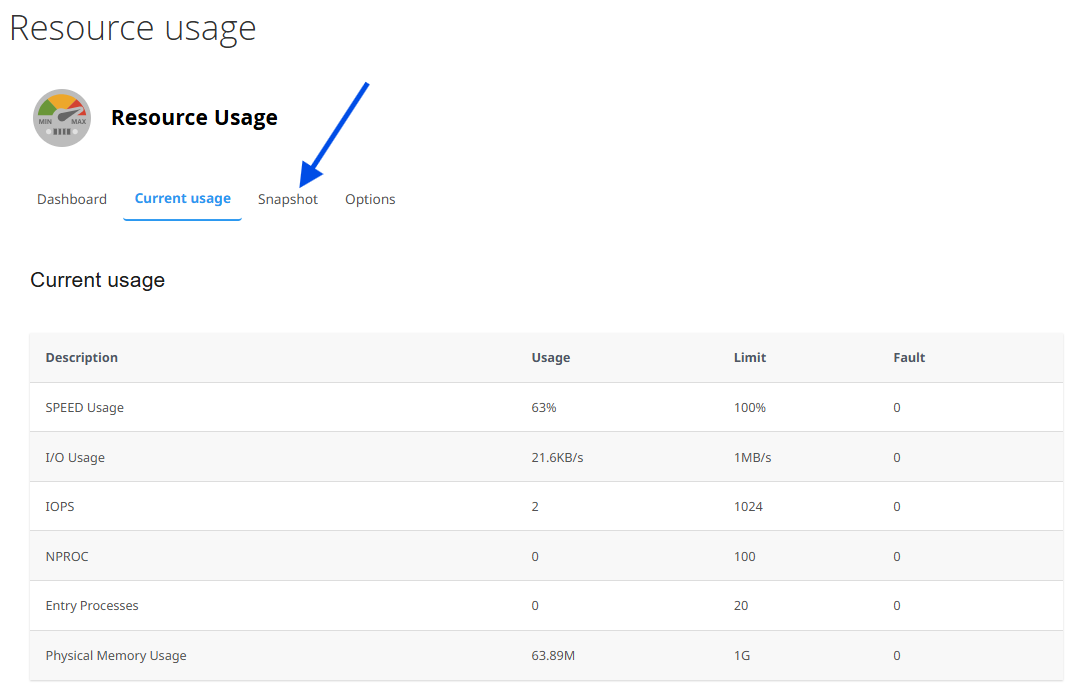
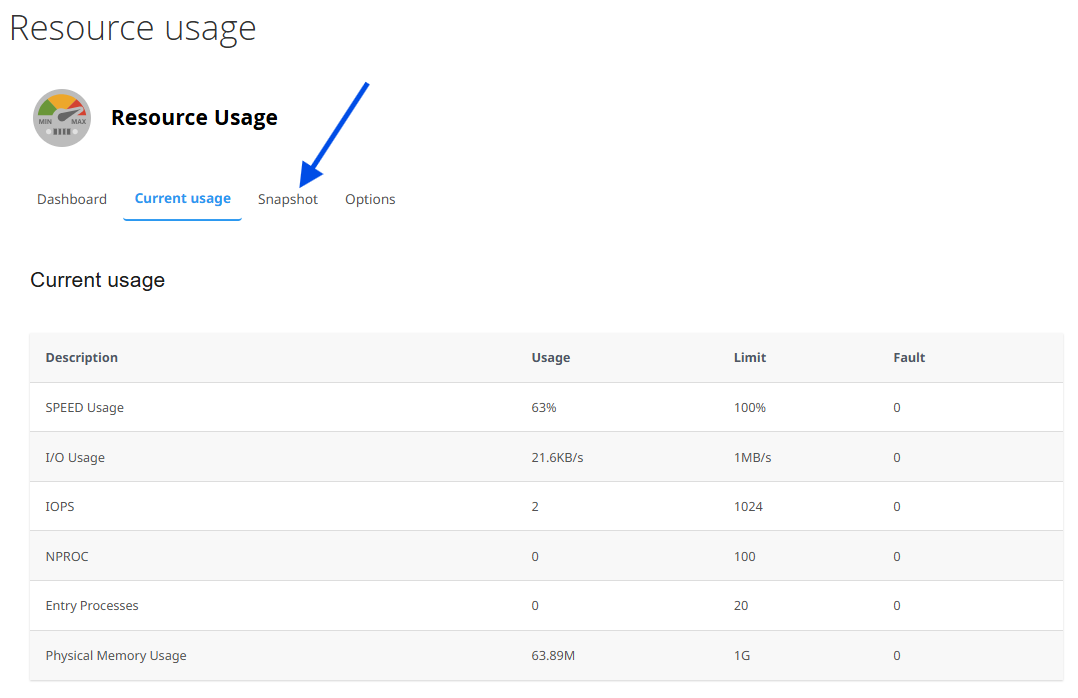
2. Click on the Snapshot tab
2. You’ll see a list of active processes during the selected period.
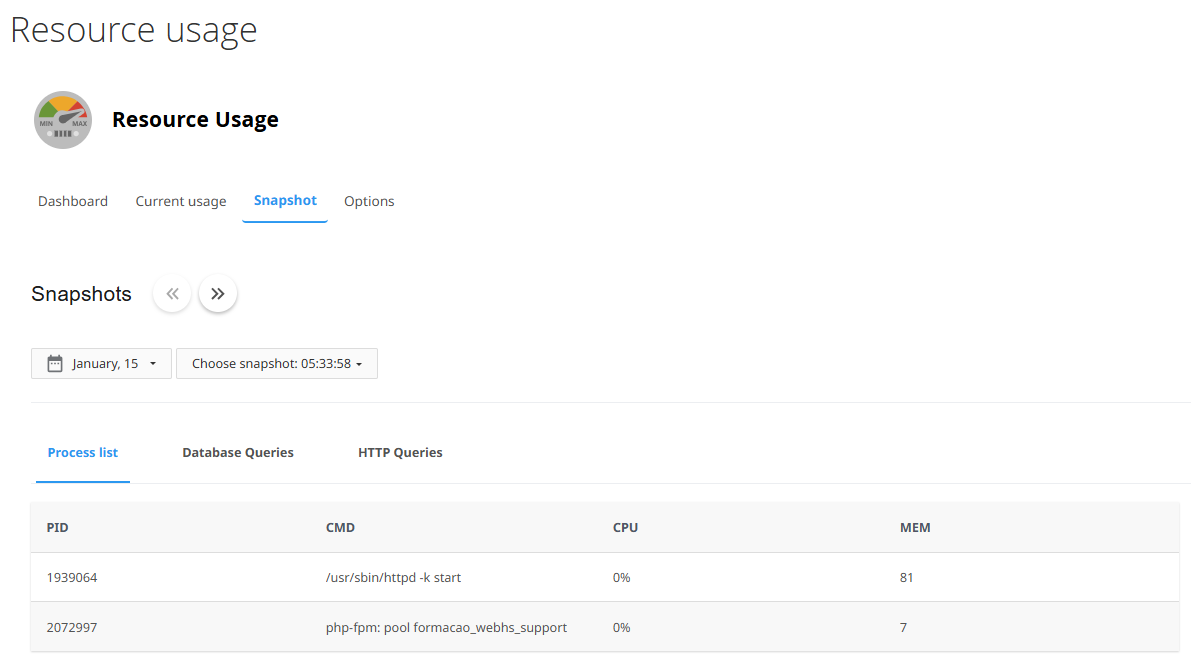
Each process includes:
- PID – Process ID
- CMD – Process or script name
- CPU – CPU usage percentage
- MEM – Memory usage
 Example:
If a file (e.g., script.php) shows CPU usage above 100%, it likely indicates a coding issue causing server overload.
 Checking Overload at Different Times
1. Use the date selector
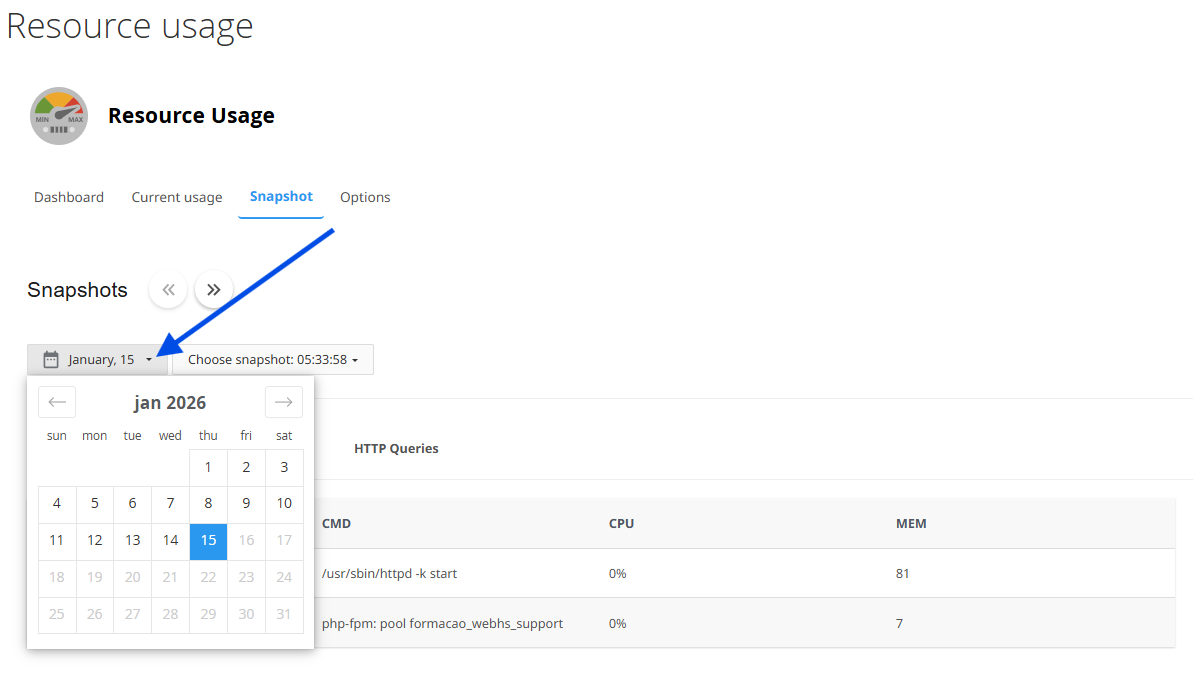
2. If available, click Choose snapshot
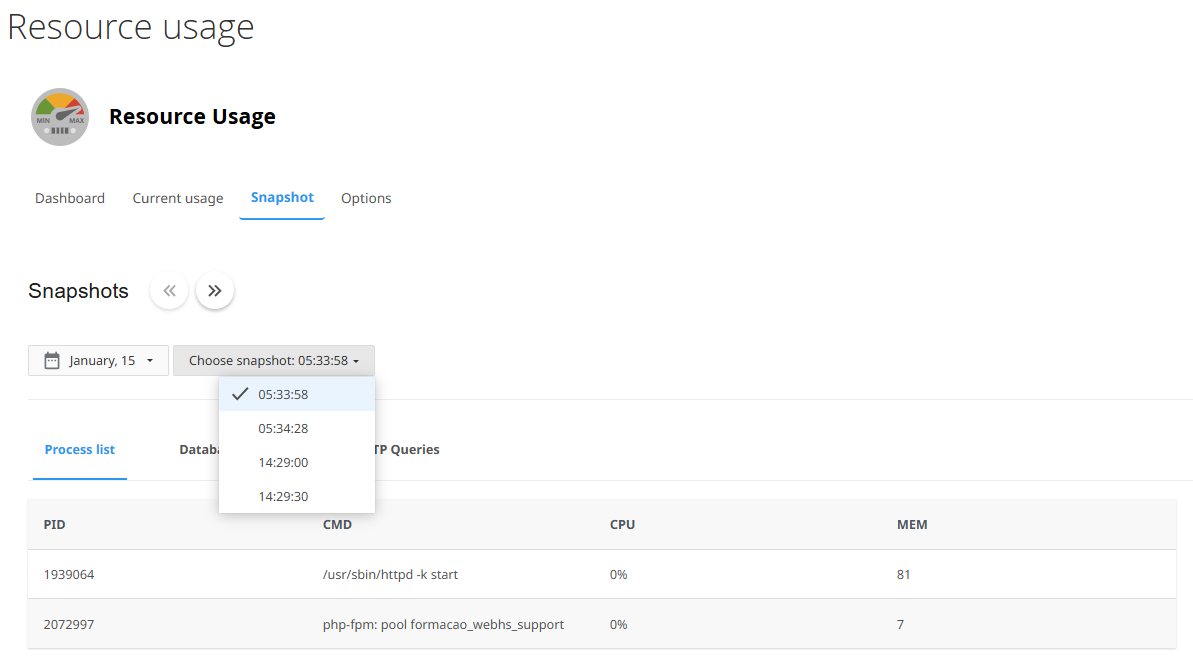
3. Select the desired time for analysis
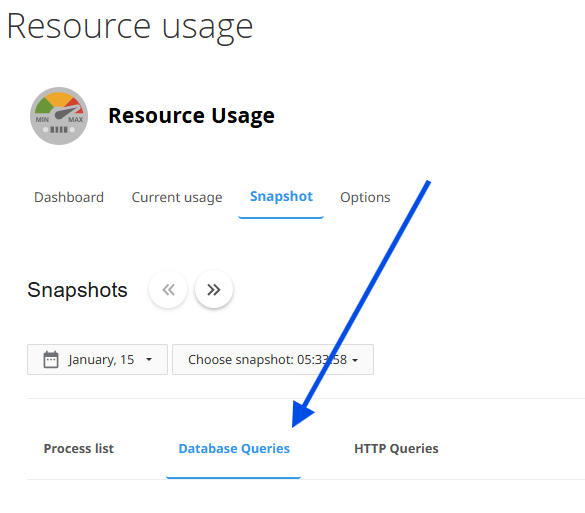
Checking Database and HTTP Queries
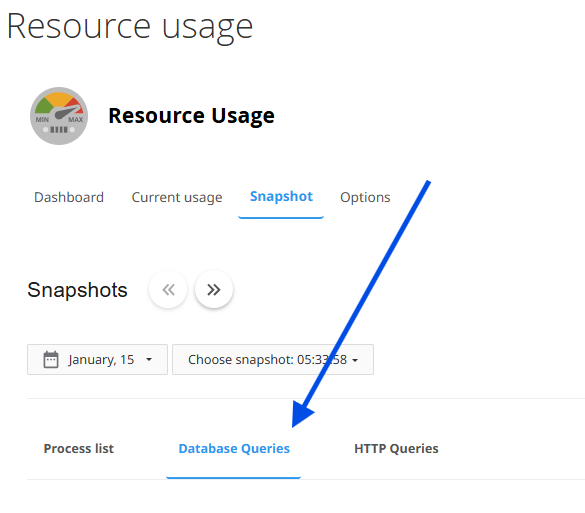
Still within the Resource Usage section, you can also review:
 Database Queries
Identifies database queries consuming high resources
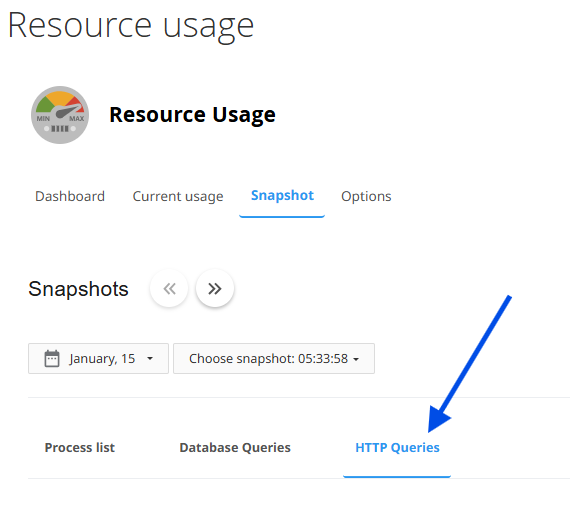
 HTTP Queries
Shows HTTP requests that may indicate heavy traffic or bots
 Common Causes of Overload
- Problematic plugins or themes (WordPress)
- Excessive database queries
- High traffic or bots
- Misconfigured cron jobs