
Suspending an email account allows you to restrict specific account functions without removing it from the server.
Suspension can be applied in different ways:
- Block login/access to the email account;
- Block outgoing emails;
- Block incoming emails;
- Block both sending and receiving emails simultaneously.
When might it be necessary to suspend an email account?
Some common situations include:
- Suspected unauthorized access or account compromise;
- Mass spam being sent from the account;
- An employee has left the company;
- A temporary need to block communications;
- An account under internal investigation or audit;
- Violation of internal usage policies.
How to suspend only login access to an email account?
This option prevents the user from accessing Webmail or configuring the account in email applications (Outlook, Thunderbird, smartphones, etc.).
Effect of the suspension
- The user can no longer authenticate and log in;
- Emails can still be received and stored on the server.
1. Log in to your cPanel account
(e.g.: yourdomain.com/cpanel or cpanel.yourdomain.com)
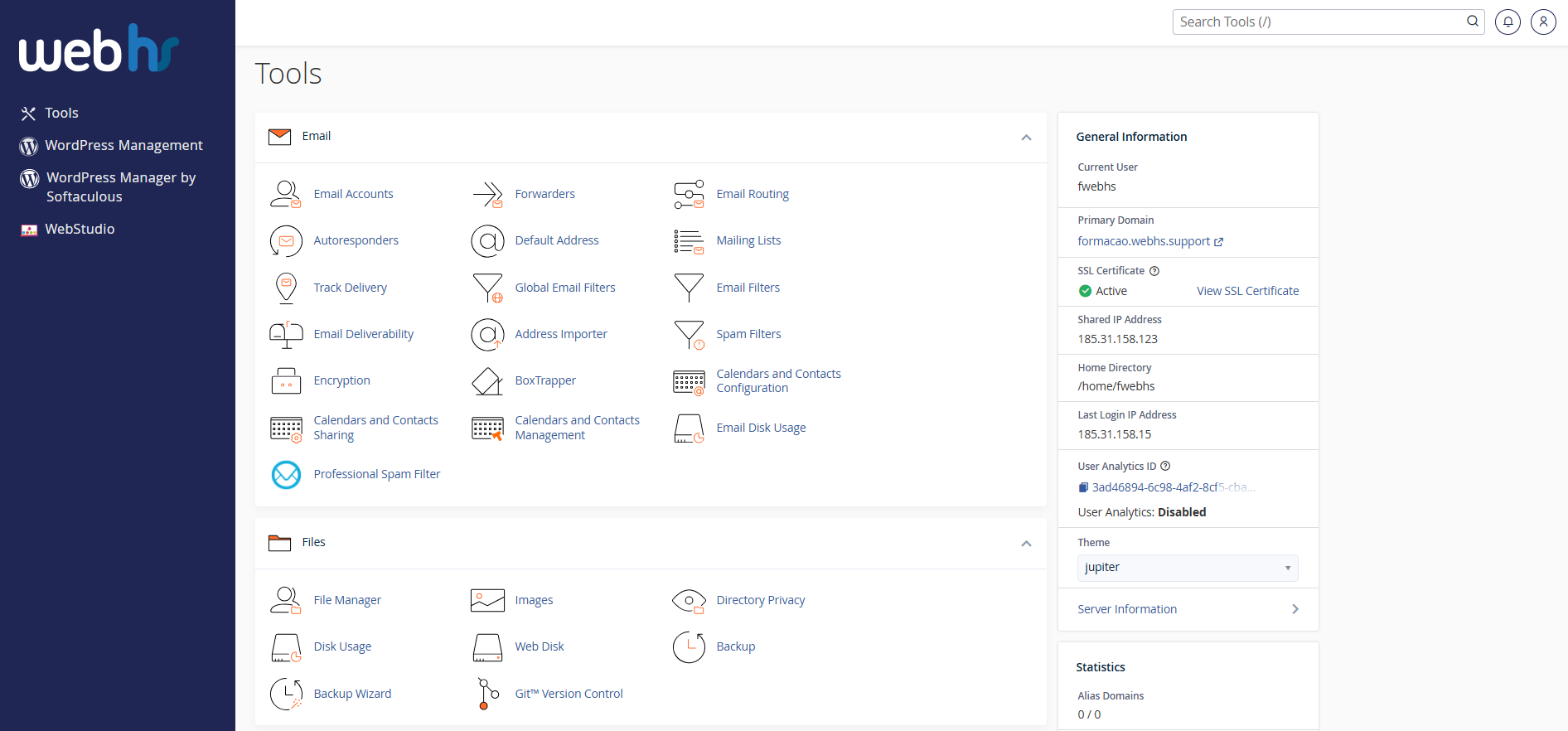 cPanel overview
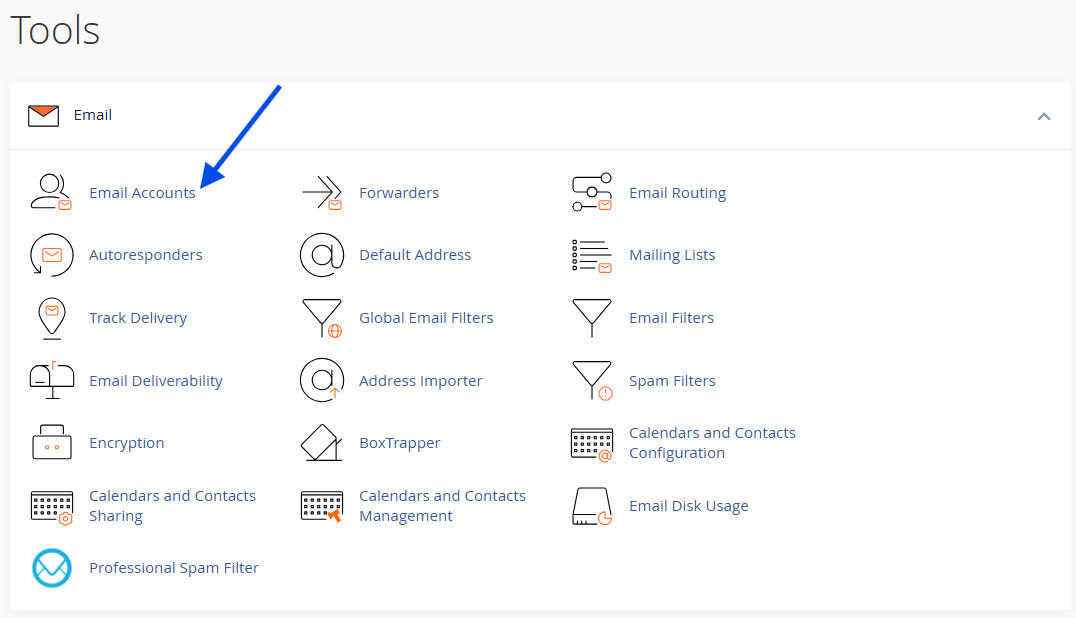
2. Click Email Accounts
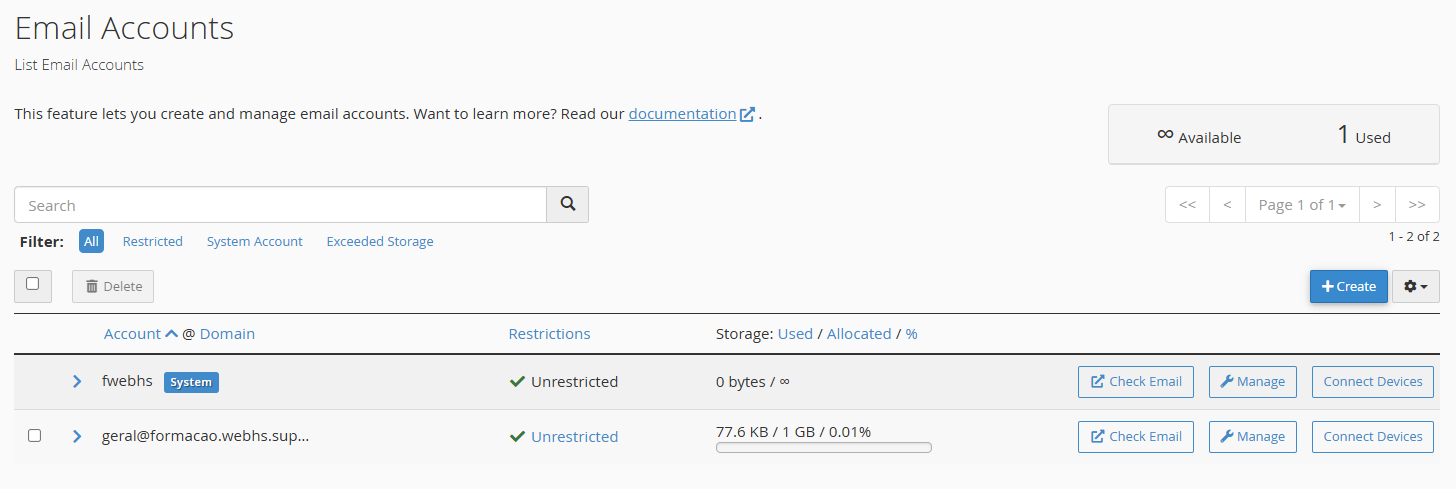
3. Locate the desired email account
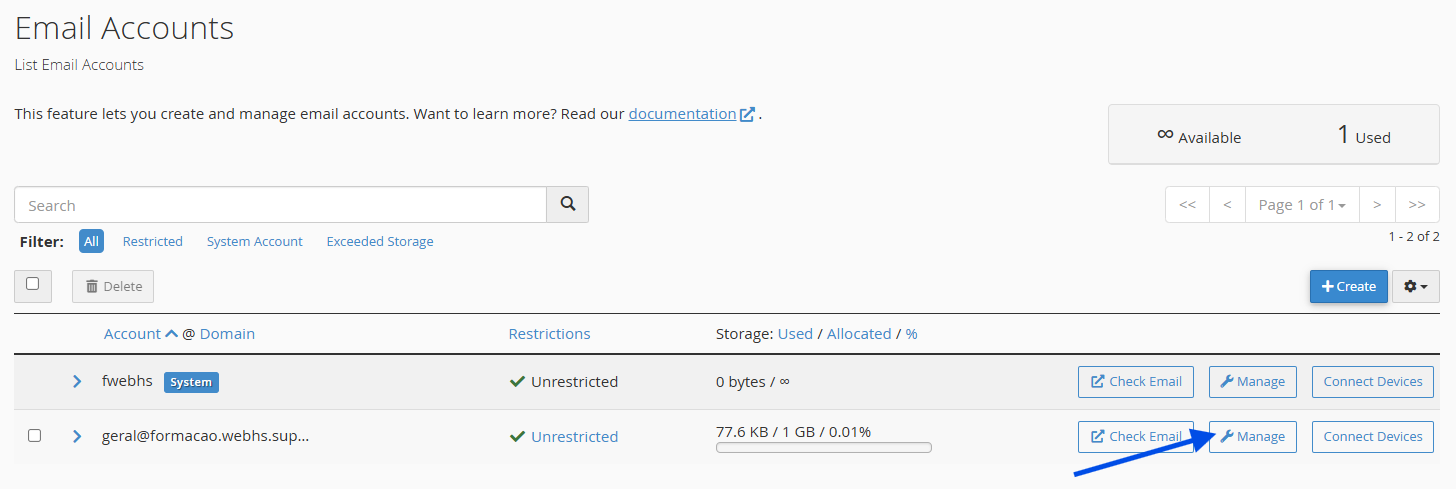
4. Click Manage
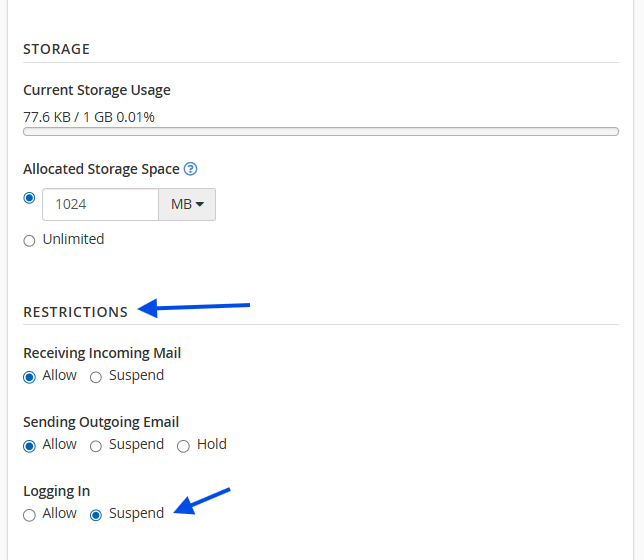
5. Under the Restrictions section:
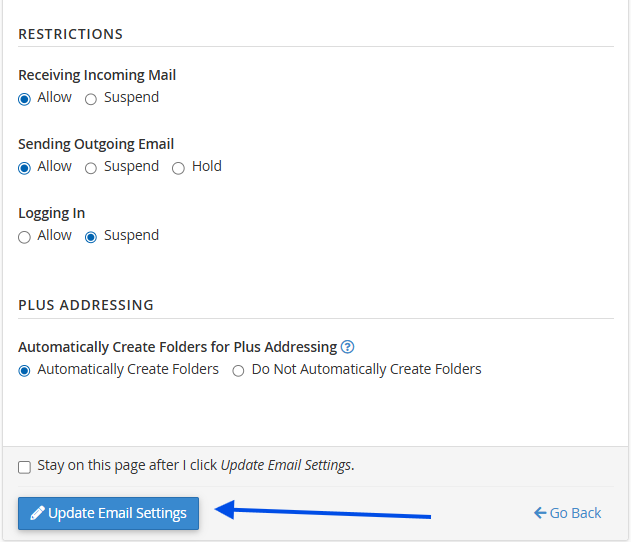
Enable: Logging In → Suspend
6. Click Update Email Settings
 Recommended use cases
- Employee no longer working for the company;
- Suspected password compromise;
- Need to immediately block access without deleting data.
How to suspend only incoming email?
This option prevents new emails from being delivered to the account.
Effect of the suspension
- The account remains accessible;
- The user can continue sending emails;
- New incoming emails will no longer be received.
1. Log in to your cPanel account
(e.g.: yourdomain.com/cpanel or cpanel.yourdomain.com)
cPanel overview
2. Click Email Accounts
3. Locate the desired email account
4. Click Manage
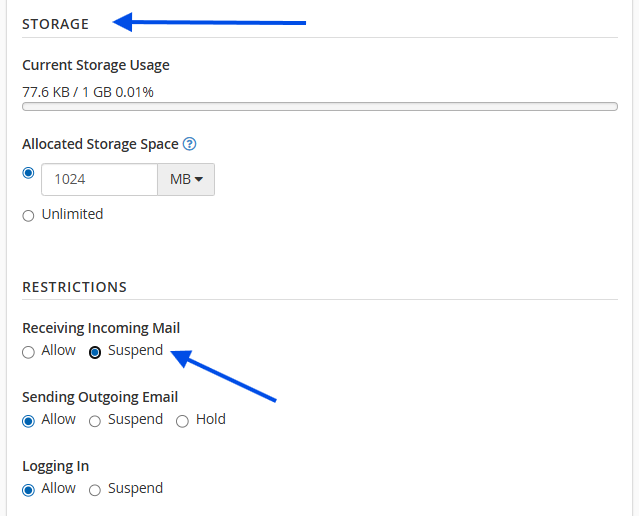
5. Under the Restrictions section:
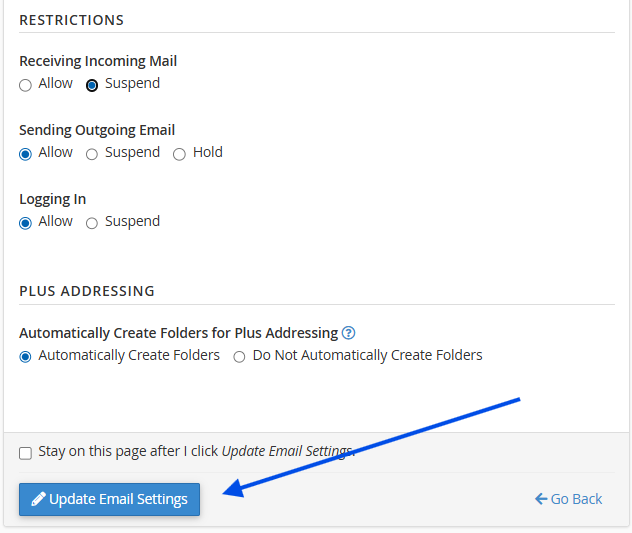
Enable: Receiving Incoming Email → Suspend
6. Click Update Email Settings
 Recommended use cases
- Gradual decommissioning of an email account;
- Migration to another email account;
- Temporary or discontinued accounts.
How to suspend only outgoing email?
This option prevents the account from sending emails while still allowing it to receive emails.
Effect of the suspension
- The user can still access the account;
- Incoming emails continue to be received normally;
- Sending emails is no longer possible.
1. Log in to your cPanel account
(e.g.: yourdomain.com/cpanel or cpanel.yourdomain.com)
cPanel overview
2. Click Email Accounts
3. Locate the desired email account
4. Click Manage
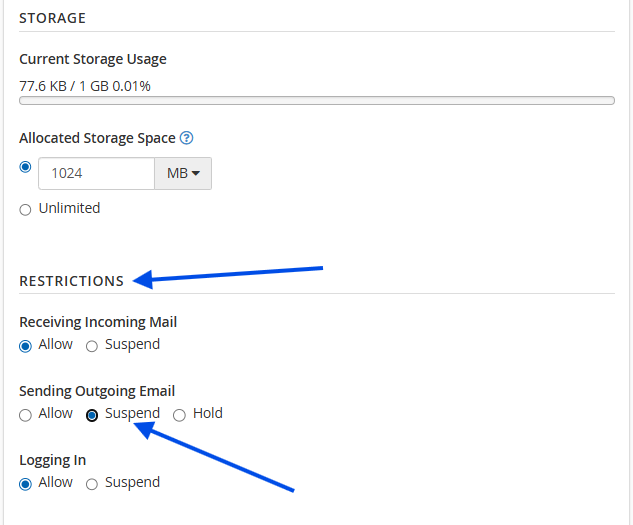
5. Under the Restrictions section:
Enable: Sending Outgoing Email → Suspend
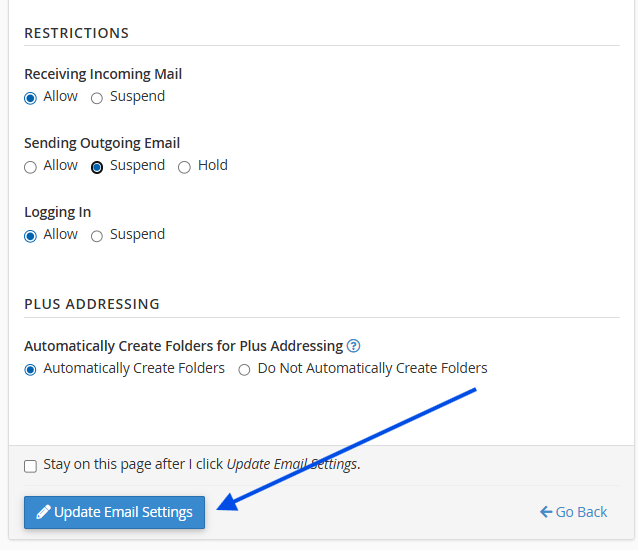
6. Click Update Email Settings
 Recommended use cases
- A compromised account sending spam;
- Preventive abuse limitation;
- Temporary usage control.
 Can the account be reactivated later?
Yes. Suspension is reversible, and the account can be reactivated at any time through cPanel by restoring the previously restricted permissions.
 Does suspension delete existing emails?
No. Suspension does not remove emails, contacts, or account settings. All data remains stored until the account is manually deleted.
 Can multiple restrictions be combined?
Yes. Different restrictions can be combined according to your needs.
| Objective | Options to Enable |
|---|---|
| Prevent access while continuing to receive emails | Restrictions → Logging In → Suspend |
| Block spam sending | Restrictions → Sending Outgoing Email → Suspend |
| Completely block the account | Logging In → Suspend + Receiving Incoming Email → Suspend + Sending Outgoing Email → Suspend |
| Stop receiving emails while still allowing sending | Receiving Incoming Email → Suspend |